
The observer can create a custom calendar view titled "observer" to see all upcoming meetings that one needs to observer and to be able to join these meetings.
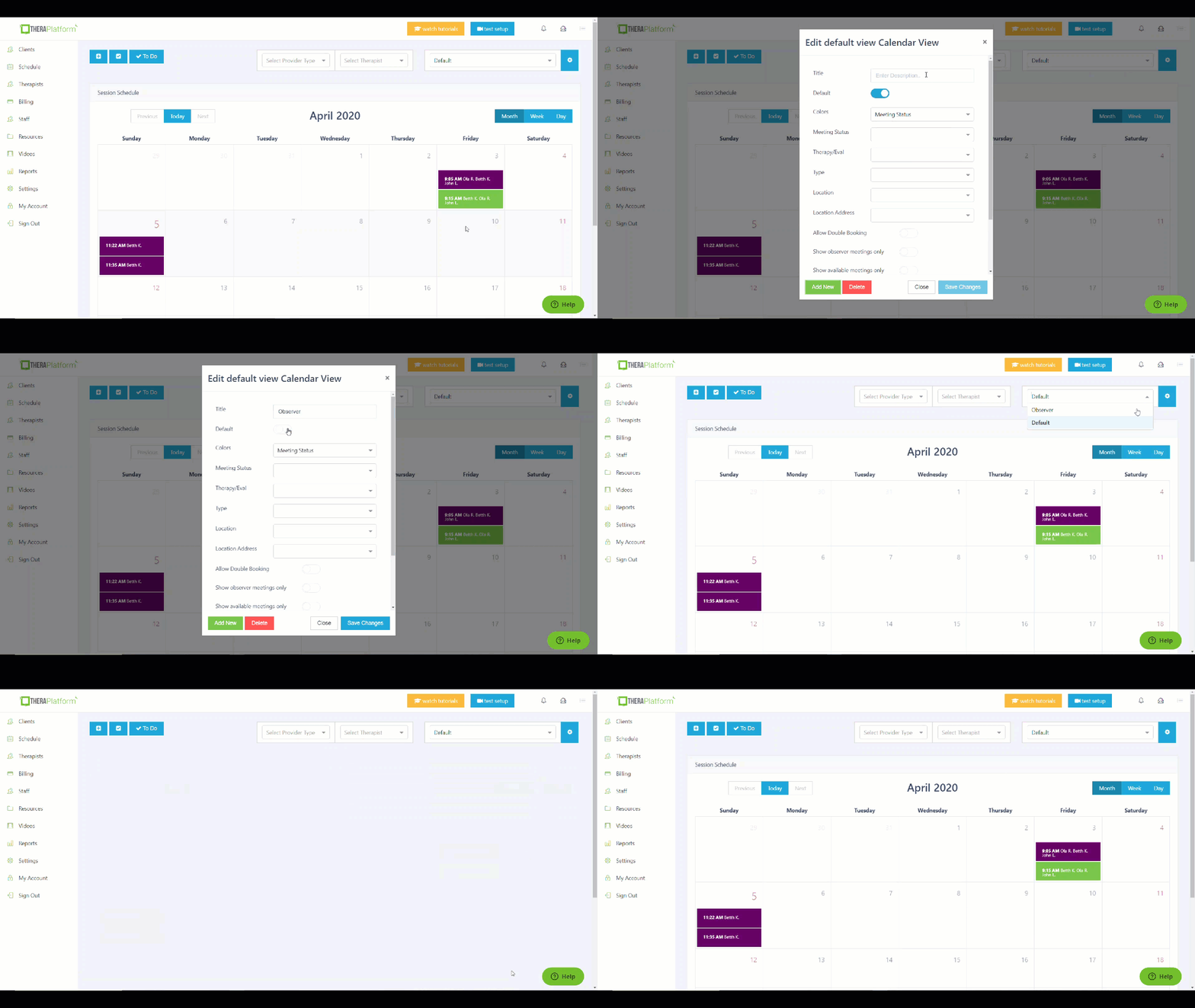
To create a custom calendar view follow these steps:
1. Login to your personal url.
2. Click on the blue box with a gear icon (above the main calendar on the right).
3. This will open a pop- up box.
4. At the bottom of the box, click on the green box "Add new".
5. This will refresh the pop up box and you can enter the title under title view "Observer meeting".
6. Uncheck the field "default"- the switch next to "Default" should NOT be in blue *
7. Mark "show observer meetings only" (this should be checked in blue".
8. Click on "save changes"
When you create the observer calendar view, you will be able to switch the calendar views between the default calendar view and observer or other custom calendar views. When it is time for the observer to join session, simply switch the calendar view to observer view and join meeting right from the calendar.
* DO NOT mark "observer" calendar view as default view as it will overwrite our 'default" calendar view. Our default calendar view shows all meetings that are scheduled. If you made a mistake and marked the observer calendar view as default. Select the observer view and next to it click on the blue box with a gear and un-check default and click on save changes
Comments
0 comments
Article is closed for comments.